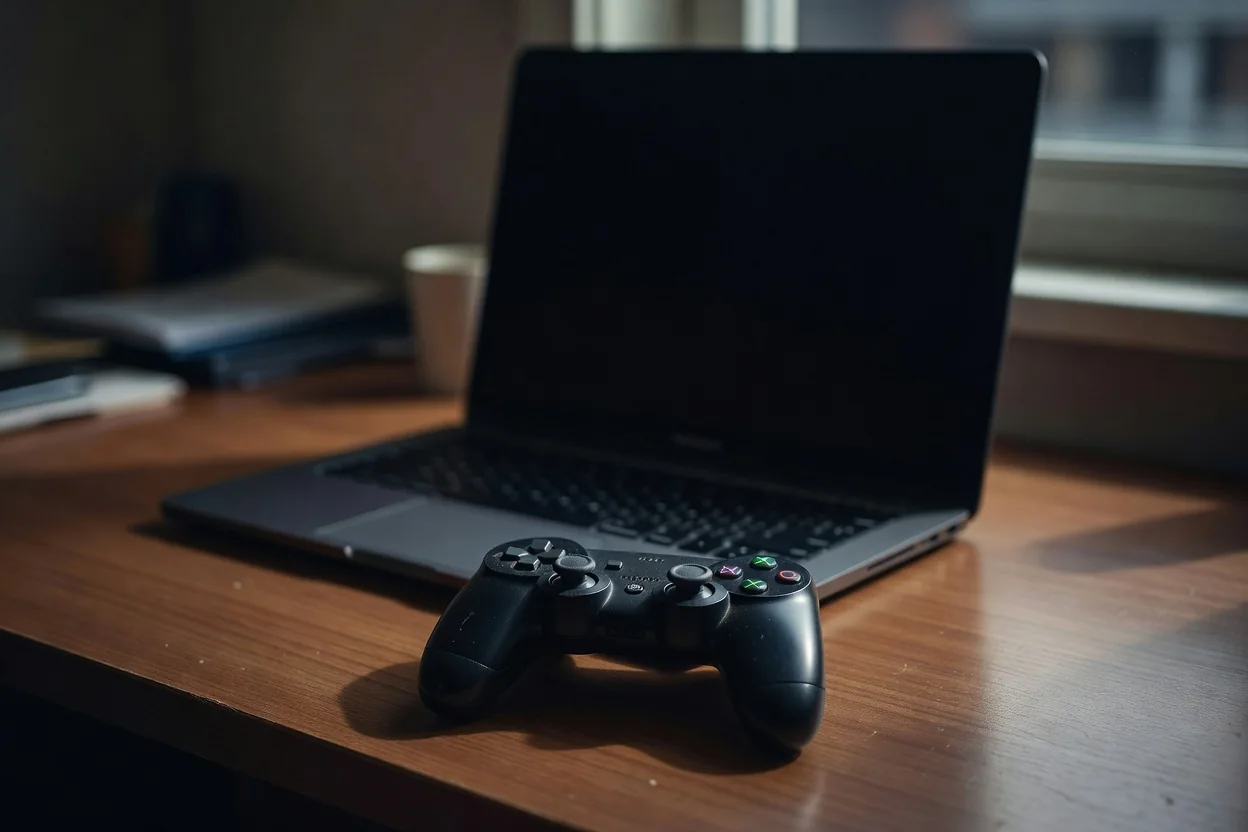
Cloud Gaming Basics: What It Is and What It Actually Needs
Cloud gaming lets you play high-end titles without a powerful local console or PC. The game runs on a remote server in a data center while your device receives a compressed video stream and sends your controller inputs back over the internet.
This setup works like a video call you control. Your screen shows the game footage, and the server reacts instantly to every button press if the connection stays stable.
How Cloud Gaming Works
The server hardware renders each frame at full graphics settings. It encodes the video and sends it to your device through a fast internet link. Your inputs travel the opposite direction in small packets that reach the server with minimal delay.
Because the heavy processing happens far away, even a basic laptop, tablet, or phone can display demanding games. The only local work is decoding the video stream and capturing controller or keyboard commands.
Main Cloud Gaming Services
Xbox Cloud Gaming comes included with Game Pass Ultimate. It streams a rotating library of titles directly to supported devices without requiring local downloads.
NVIDIA GeForce Now focuses on games you already own. It pulls titles from Steam, Epic Games Store, or other PC libraries and streams them at higher visual quality on supported hardware.
PlayStation Plus Premium offers cloud streaming for selected PlayStation games. Subscribers can play a range of catalog titles on compatible devices without owning a console.
Hardware Requirements
Most cloud services run on modest local devices. A five-year-old laptop, recent smartphone, or basic tablet usually provides enough power for smooth video decoding.
Controllers from major brands work across platforms. Many services also accept touch controls on mobile or keyboard and mouse on computers when appropriate for the game.
Internet Connection Needs
Providers commonly recommend a stable download speed of 10 to 20 Mbps for standard 1080p streams. Higher resolutions or frame rates may need more bandwidth.
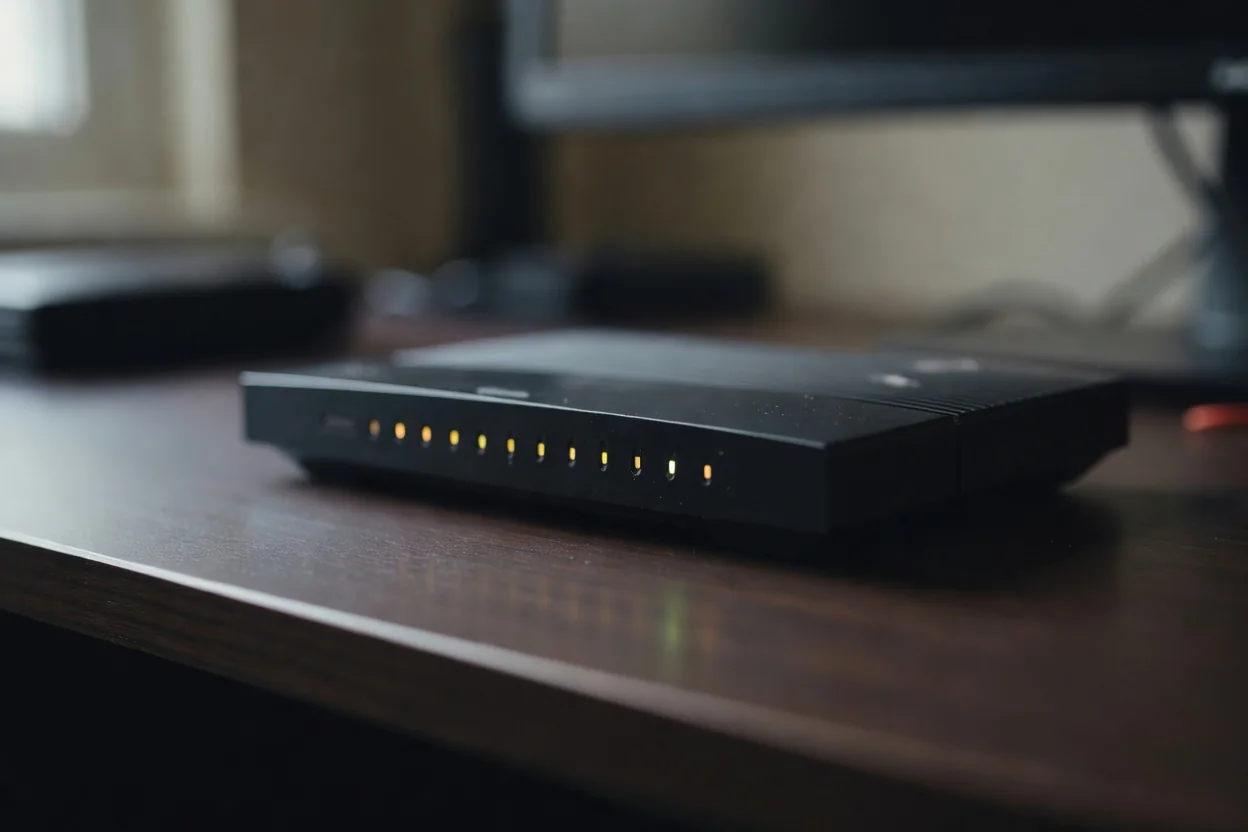
Low jitter matters more than peak speed. Consistent packet delivery prevents stuttering even if momentary speed tests show higher numbers. Wired Ethernet or a strong Wi-Fi signal reduces interference and packet loss.
Regional Factors in Latin America
Distance to the nearest data center decides how the service feels. Longer paths increase input lag and can make fast-paced games harder to enjoy.
Available game libraries differ by country due to licensing agreements. Some titles that appear in one region may stay locked in another, so checking local catalogs remains essential before subscribing.
Choosing the Right Service
Getting Started with Cloud Gaming
Begin by selecting one service that matches the games you already own or want to play. Create an account, download the official app or use the browser version, and sign in with your linked store credentials. Test your connection first with the built-in speed check tool each provider offers. Start with a familiar title at the lowest graphical setting to confirm the stream remains smooth before adjusting quality upward.
Many players keep a wired Ethernet cable handy for the first sessions because it removes wireless variables. Update your device drivers and close background applications that consume bandwidth. Once the setup feels stable, cloud gaming lets you jump between devices without installing large files or worrying about local storage space.
Common Pitfalls to Avoid
Users often overlook that cloud gaming depends on consistent latency rather than raw download speed alone. A connection that fluctuates between high and low speeds creates noticeable input lag even when average bandwidth looks sufficient. Another frequent mistake is expecting every game in a personal library to appear on every service; ownership does not guarantee availability across all platforms. Finally, playing on a small mobile screen without a controller can make precise aiming or menu navigation harder than on a television or monitor.
Tips for Better Cloud Gaming Sessions
- Connect a compatible controller before launching any title to avoid on-screen touch controls.
- Schedule longer play sessions during off-peak hours when server load is typically lower.
- Keep your screen brightness moderate and sit at a comfortable distance to reduce eye strain during extended streaming.
- Use the service’s quality slider to balance visual detail against connection stability.
- Check for firmware updates on your router to maintain the most reliable local network performance.
- Pair headphones directly with your device instead of routing audio through a television to cut additional wireless hops.
| Service | Model | What You Need |
|---|---|---|
| Xbox Cloud Gaming | Subscription library | Game Pass Ultimate and 15 Mbps stable connection |
| NVIDIA GeForce Now | Owned games streaming | Owned PC titles and 20 Mbps for higher settings |
| PlayStation Plus Premium | Catalog streaming | Premium tier and reliable 15 Mbps link |
A good VPN can sometimes route traffic to closer or less congested servers, improving stability in regions with limited local data centers. Testing different connections helps find the setup that delivers the smoothest experience for each service.